








Float manuals
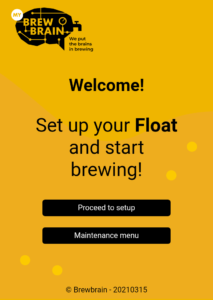
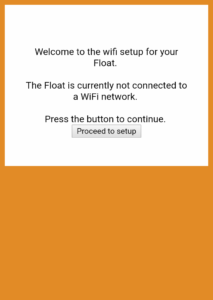
The Float has seen many firmware versions, each with its own interface. Download the manual that matches yours. To help you choose, we show the welcome screen of each version below.
Float specifications
The Float specifications are only available in English. Get your PDF copy here.
How do I register my Float?
Set the Float to Setup mode. With a mobile device, connect to the Float’s Wi-Fi access point (named after its serial number). Follow the on-screen instructions to connect it to your home Wi-Fi and link it to your My Brewbrain account. After registration, switch the Float to Measure mode to start recording data.
The instructions are also explained in the manual available at the top of this page.
How do I connect my Float to a different Wi-Fi network?
Essentially, going through the registration process again, will connect your Float to a different Wi-Fi network. Set the Float to Setup mode. With a mobile device, connect to the Float’s Wi-Fi access point and follow the on-screen instructions to select a new network and enter its password.
These steps are also described in the manual available at the top of this page.
How do I update my Float's firmware?
When a new firmware update is available, a notification will appear in the menu bar and on your Float’s page on My Brewbrain. You can find your Float’s page in the “My Floats” section from the menu. To start the update, press the “update the Float’s firmware” button on your Float’s page and make sure the Float is in Measure mode. The update downloads and installs automatically.
How do I adjust the calibration of my Float?
You can adjust your Float’s calibration in Setup mode. The calibration manual available above gives step-by-step instructions.
How do I perform a factory reset?
- Make sure the Float is charged
- Set the Float to Setup mode
- Connect to the Float’s WiFi access point with a mobile device
- Open the setup page (or navigate to 192.168.4.1 in your browser)
- Go to Maintenance menu → Factory reset
- Read the instructions and confirm
- Wait for at least a minute for the device to restart
Note: your mobile device should shut down the Float’s user interface automatically. If it doesn’t, simply reconnect to your Float’s Wi-Fi after it comes available again.
Note: a factory reset does not erase your WiFi credentials, registration, or calibration data.
Using your Float
What do the LEDs mean?
The Float has three LEDs. Green and red for charging and blue for communication.
Charging
- Red LED on continuously: Float is charging
- Green LED on continuously: Float is fully charged
- Green LED on continuously with fast blinking red LED: there might be a battery issue. Visually check if the battery clips connect to the battery.
Communication
- Latest firmware (2023-07-19-1-stable):
- Four bright blinks: Float has entered Setup mode
- Two bright blinks: Float has entered Measure mode
- Older firmware:
- Brief blink in Measure mode: Float is transmitting data
Where can I change my measurement units?
Measurement units are set on the My Brewbrain platform, not on the Float itself. Go to your user settings on My Brewbrain. Available options include SG, °P, °Oe, Brix, Baumé, KMW/Babo for gravity, and °C, °F for temperature.
Does the Float work in a stainless steel fermenter inside a fridge?
Many users get good results in this setup, but reception depends on your Wi-Fi strength and physical setup. Place your router as close to the fermenter as possible. If signal is still poor, consider a Wi-Fi repeater. See also the recommended Wi-Fi settings in this FAQ
Can I use the Float in brews under pressure?
The Float functions at up to 1 bar (15 psi). Keep in mind that pressure fluctuations can can influence measurements.
WiFi settings
What are the recommended WiFi settings?
Security
- Disable WPA3
- Use WPA2 Personal (also called WPA2-PSK), NOT WPA2 Enterprise!
- Do NOT use WPA3 or WPA2/WPA3 mixed mode — even mixed mode can cause silent failures!
- Max password length: 30 characters! Longer passwords will NOT work!
- Use only letters, numbers, hyphens and underscores in your password and network name. No spaces or special characters (!, @, #, & etc.)!
Main router settings
- Enable DHCP
- Use 2.4 GHz band — 5 GHz band NOT supported!
- Use WiFi channels 1, 6 or 11 — do NOT use ‘Auto’! In Europe routers on Auto may pick channel 12 or 13, which the Float cannot use.
- Channel width: 20/40 MHz or auto
- Enable 802.11 b/g/n mode or Legacy mode — do NOT use ‘Auto’, ‘802.11n only’, or ‘802.11ax/WiFi 6’ mode!
Modern router features to disable
- Disable Smart Connect or Band Steering — this can push the Float to 5 GHz without warning!
- Disable WiFi 6 (802.11ax) on the 2.4 GHz band if your router has this option
- Mesh WiFi systems (Eero, Google Nest, TP-Link Deco, ASUS ZenWiFi) can cause connection drops — test with a simple mobile hotspot first to rule out your router as the cause
If you still experience issues:
- Assign a static IP for your Float via DHCP settings
- Test by creating a hotspot on your phone (WPA2, 2.4 GHz, simple password). If the Float connects there, your router settings need adjusting
- Try using a WiFi name (SSID) with no spaces or special characters — the same goes for your password
- If using a mesh system, try connecting via your main router directly rather than through a mesh node
Troubleshooting
My Float is not registering any data points
Data points should arrive soon after having set to measure mode. You might have to wait 15 minutes for the first data point.
Note: Before you see data arriving in the My Brewbrain platform, you must have an active “Brew” for your Float.
- Make sure the battery is charged before use
- Check that the Float is in Measure mode
- Move the Float close to your router to rule out Wi-Fi signal issues
- If none of the above helps, perform a factory reset
My brew is missing some data points
In most cases this is a Wi-Fi signal issue. The minimum recommended signal strength is -70 dB (values closer to zero are better). Check the Wi-Fi signal indicator on your latest brew page on My Brewbrain. The Wi-Fi symbol is below the Brew’s name. It’s color tells you the Wi-Fi signal strength:
- Green: reception is good
- Orange: reception could be better, you might miss data points
- Red: reception is bad, you will likely miss multiple data points
To improve Wi-Fi signal strength, move your Wi-Fi access point or add a repeater if needed. Optimal locations are above the fermenter, and as close to it as possible.
I don't see the Float's Wi-Fi acccess point when I set it to Setup mode
- Ensure the Float is fully charged
- Make sure you are close to the Float with your mobile device
- Try a different phone or device
If you still cannot see the network, contact support@brewbrain.nl.
I can see the Float's Wi-Fi access point, but cannot connect to it
- Turn off mobile data (3G/4G/5G) on your phone before connecting
- Acknowledge any pop-up your phone shows asking to sign in to the network
If you are still unable to connect, contact support@brewbrain.nl.
My phone disconnects from the Float during setup
This can happen when the Float is attempting to connect to your selected Wi-Fi network. The Float is switching network channels and needs to restart. Simply reconnect to the Float’s Wi-Fi access point and the registration process should continue automatically.
Wi-Fi connection issues with firmware older than 2023-07-19
Floats with older firmware versions can have difficulty connecting to some Wi-Fi networks. First, check the that the Wi-Fi network you want the Float to connect to, follows the recommended Wi-Fi settings.
If your Float still won’t connect to your Wi-Fi network, a workaround is to use a mobile hotspot during setup. Mobile hotspots do not need to hop through (home) routers and can therefor reach the My Brewbrain platform more easily.
Here are the instructions for setting up your mobile hotspot:
- Create a hotspot on one mobile device
- Set the Float to Setup mode
- With a second device, connect to the Float’s WiFi access point
- Select the mobile hotspot as the target network and complete registration
- Once registered, update the Float’s firmware via your Float’s page on My Brewbrain before switching to your regular WiFi
If this works, it shows that the Float can register normally.
You can also ask an AI search engine to help you out. For that you need to know the brand and model of your Wi-Fi access point(s). Then ask:
My ESP8266 based device wont connect to my Wi-Fi access point. The Wi-Fi access point is of BRAND and MODEL(S).