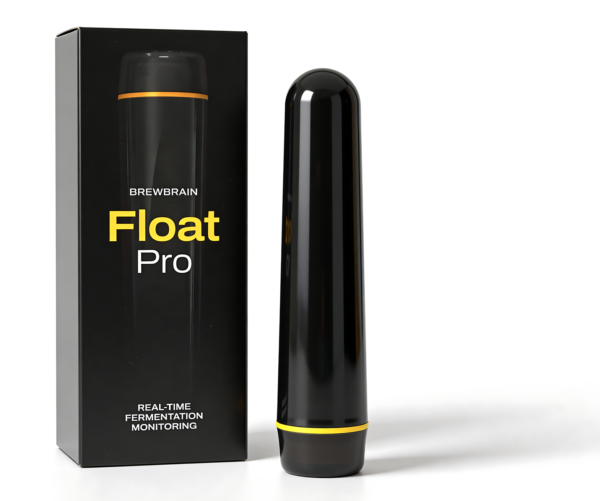





Float Pro digital hydrometer
User manual
Welcome to the Float Pro user manual. Everything you need to set up, use and get the most out of your device.
You have just received your Float Pro and want to start a fermentation, here’s what you have to do:
Your Float Pro’s measurements are automatically recorded in the free My Brewbrain platform. There you can find your new Float Pro under the “My Floats” page on my.brewbrain.nl
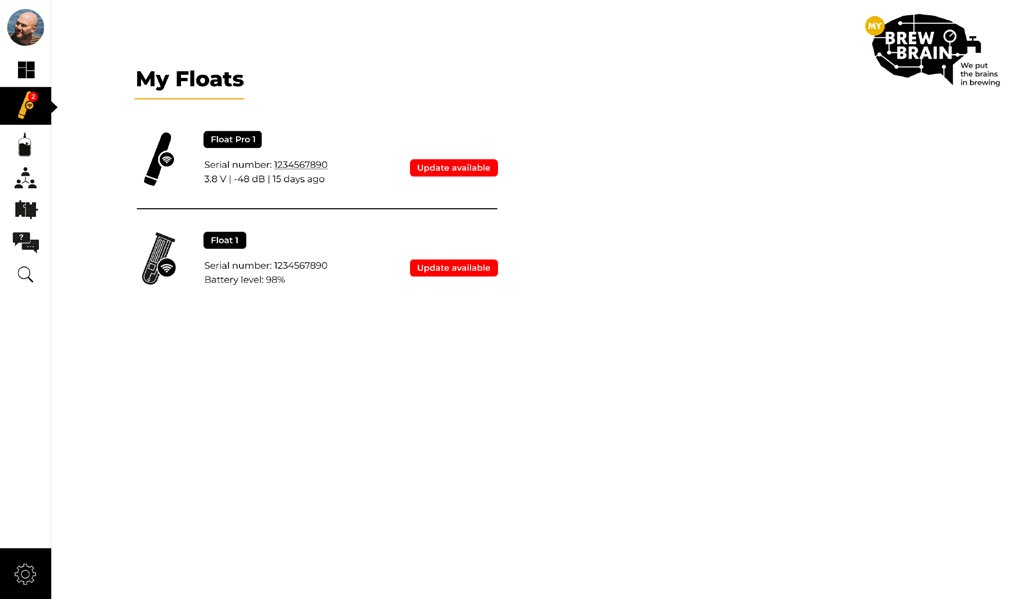
Your Float Pro automatically logs measurements to the free My Brewbrain platform. If you don’t have an account on the platform, registering the Float Pro will automatically create one for you, and associate it with the email address you used during registration. On the platform you can manage your Float Pro; change its fade color, change measurement units, update the firmware and more. You can view, download and share measurement data with other users, but you can also integrate with other (brewing) apps.
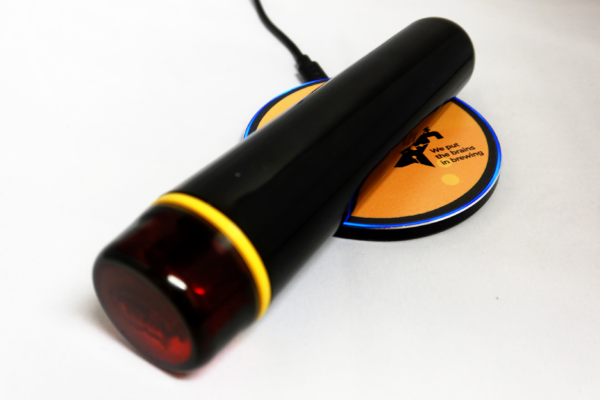
You can charge the Float Pro in two ways:
The Float Pro should be charged at least once every half year for optimal battery life.
The Float Pro has three modes:
Switching the mode of the Float Pro is done by one of the following:
Based on its orientation the following modes are available:
| SETUP | MEASURE | OFF |
In SETUP mode, a Float Pro Wi-Fi access point is available. Connect to it with your mobile device for an interactive menu. In this menu you can register your Float Pro, connect it to your Wi-Fi and you can access your Float Pro’s information in the maintenance menu.
The Float Pro is in SETUP mode when it’s standing on its lid.
After 15 minutes of inactivity the Float Pro automatically switches OFF.
Taking the Float Pro off its lid also switches the Float Pro OFF.
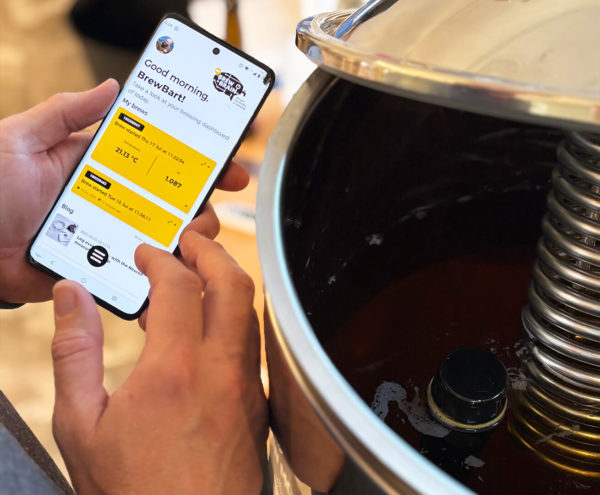
In MEASURE mode the Float Pro sends measurements to the My Brewbrain platform every 15 minutes. Sending data takes a few seconds. In between measurements the Float Pro is not connected to your Wi-Fi to preserve battery.
In OFF mode your Float Pro doesn’t show any light signals in the lid.
The Float Pro can be switched OFF:
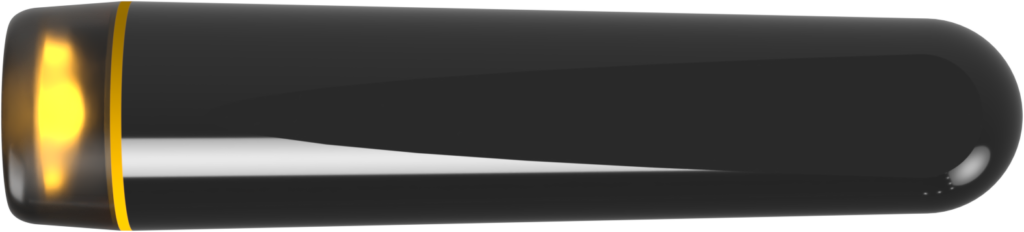
 |
 |
6 pulse, Fade out |
The Float Pro is not registered, please switch to SETUP mode |
 |
 |
Fade in, 1 blue pulse, 3 blue pulses, Fade out |
MEASURE mode, normal behaviour |
 |
 |
Fade in, green pulse every 3 seconds while active |
SETUP mode, normal behaviour |
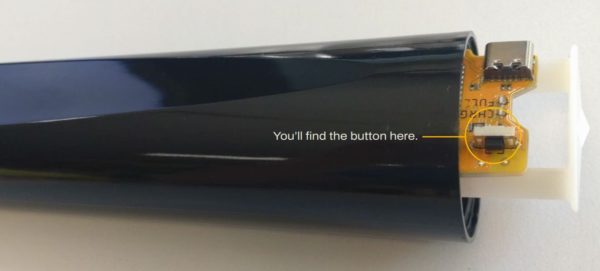
By removing the Float Pro’s lid, a button is accessible. This button has three functions which are triggered based on how long you press the button:
Clean the Float Pro with conventional brewing cleaning agents. We have tested the following cleaning agents and they are safe to use:
Examples of what NOT to use:
The Float Pro is best stored in its packaging. In this way it is stored in a dark environment. Place it somewhere out of direct sunlight.
To preserve battery life, make sure the Float Pro is in the OFF position when stored. Charge the Float Pro at least once per half year to preserve battery life.
Make use of the latest features and improvements by keeping your Float Pro’s firmware up to date.
When a new firmware update is available, this is visible in the platform under “My Floats”. From there you can choose to update your Float Pro.
The advised procedure when starting a fermentation is:
The Float Pro restarts;
A factory reset returns the Float Pro to the configuration it had after production.
Note: After a factory reset, register the Float Pro to start using it again.
Perform a factory reset by pressing the button under the lid, for more information see the Modes chapter.
If you see the lid fading in or out in red, a red color is assigned to your Float Pro.
You can change this color from the my Brewbrain platform.
If the lid shows a non-fading red light:
You can order a replacement battery by contacting support. If you would like to purchase a liion battery elsewhere, you will have to pay attention to the weight of the battery. The weight of the battery influences the measurement accuracy. Please contact us to ask for the specifications for the required battery.
Caution: To reduce the risk of electrostatic damage occurring to the electronics, ground yourself via an ESD wristband when replacing the battery.
To replace or remove the battery, unscrew the lid and carefully slide the electronics out of the housing. Lift the battery from the holder, starting at the negative pole. Install the replacement, make sure to check the polarity!
The Float Pro will reboot after (albeit quickly) charging it.
The li-ion battery must not be disposed of with household waste. Dispose of the battery at an appropriate collection point. Please follow local regulations for battery recycling.
The Float Pro must not be disposed of with household waste. Dispose of the device at an appropriate (electronics) recycling collection point according to local regulations.
The housing is made from recyclable PET. Please follow your local waste-handling regulations and make an extra effort to recycle it whenever possible.
If you have any feedback on our manual, if you find anything unclear, please contact us by sending an email to support@brewbrain.nl.